WhatsApp Business Quick Replies: Setup Guide and Practical Examples
Quick replies are saved responses that help a business answer repeated questions faster without asking agents to type the same message all day. Used well, they create consistency. Used carelessly, they can sound robotic or send outdated information. This guide shows how to build a useful library and when a human should still review the answer.
It also explains how WhatsApp Business reply shortcuts fit beside greeting messages, away messages, team inbox work, and higher-control automation.
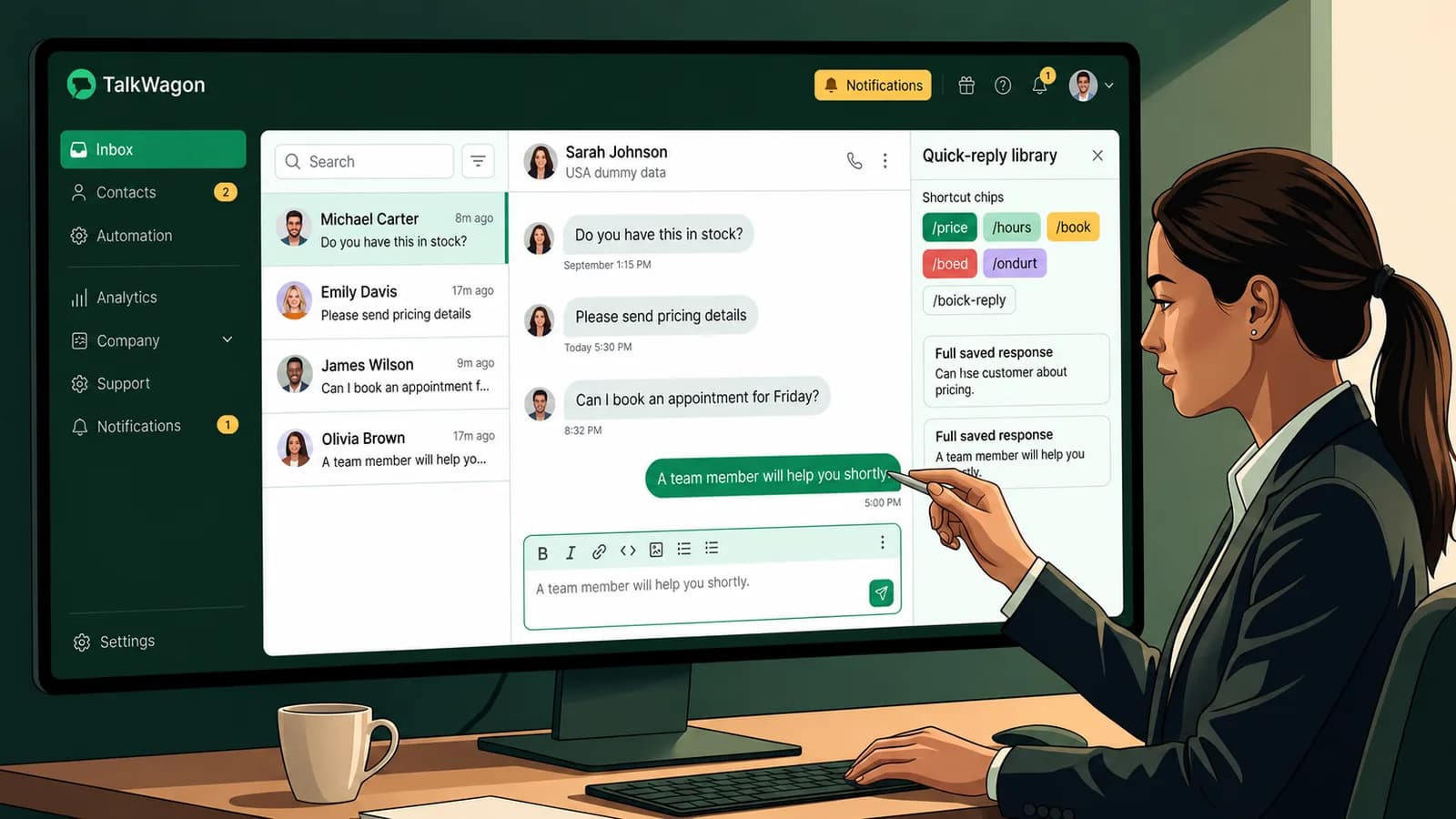
A WhatsApp quick reply is not a chatbot and it is not a broadcast template. It is a reusable saved response that a person can choose during a conversation. That difference matters because quick replies are strongest when they combine speed with judgment: the reply is ready, but the agent still checks the customer context before sending.
Definition
What WhatsApp Business quick replies are
WhatsApp Business quick replies are reusable messages for common customer questions. In the WhatsApp Business app, a business can create saved replies and give each one a shortcut. When an agent is replying to a customer, the shortcut helps bring up the saved message quickly.
The practical value is not just speed. A good quick-reply library keeps important information consistent: support hours, booking requirements, delivery wording, payment safety reminders, and the way the team asks for missing details. It also reduces the chance that each agent writes a different answer to the same question.
Distinctions
Quick replies are not every WhatsApp message tool
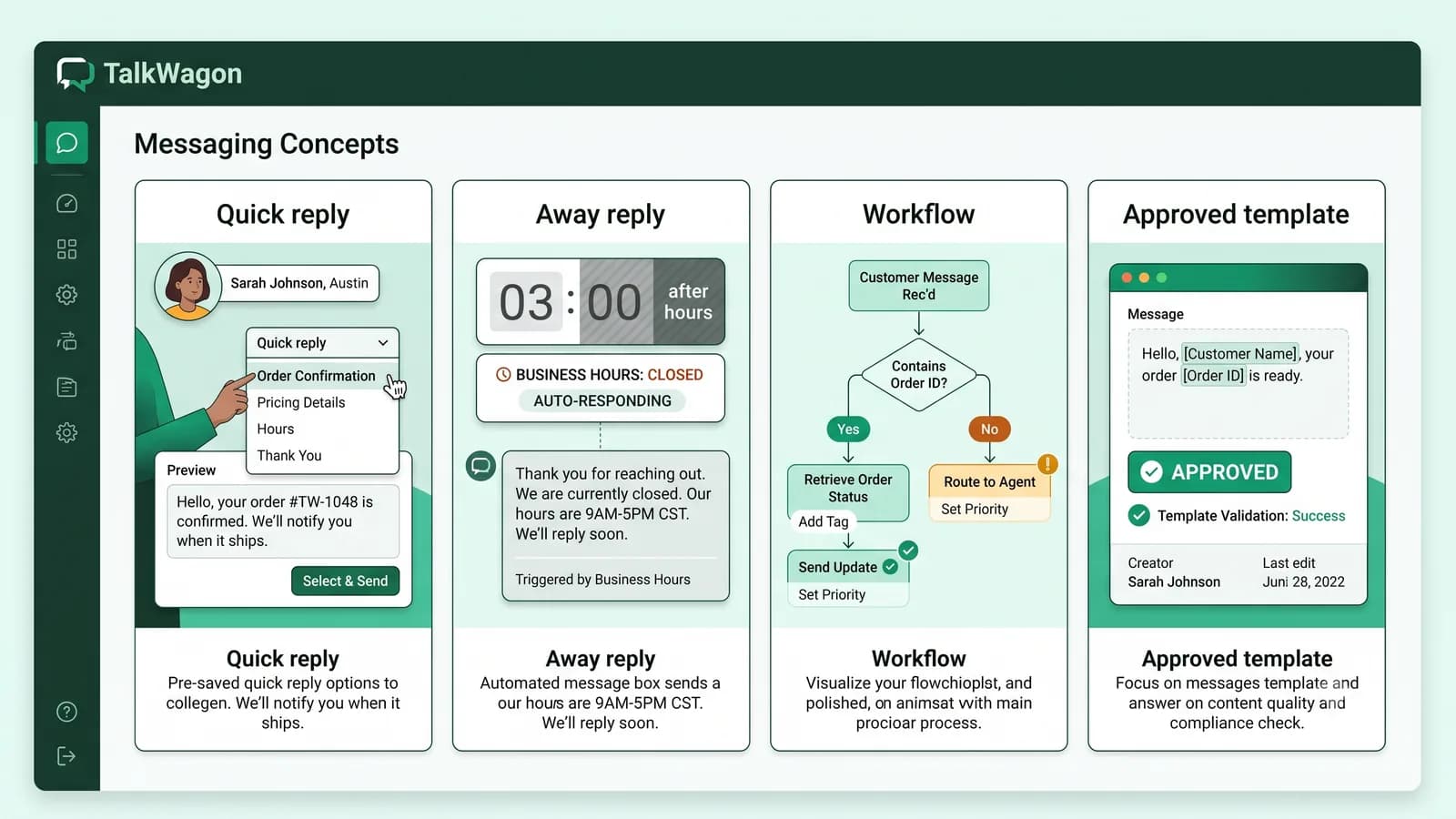
Many businesses mix up quick replies, greeting messages, away messages, automated workflows, and approved platform templates. They can all involve repeated wording, but they behave differently.
| Message type | What it does | Best use | Watch out for |
|---|---|---|---|
| Quick replies | Reusable saved responses chosen by an agent during a chat. | Common questions, support answers, pricing requests, delivery updates, and follow-ups. | The agent should check context and personalize before sending. |
| Greeting messages | Automatic welcome replies for new or returning customers. | First-contact acknowledgement and basic routing. | They should not carry the full burden of customer support. |
| Away messages | Automatic replies when the business is unavailable or outside hours. | After-hours, holidays, closures, and delayed response expectations. | The schedule and response promise must match real staffing. |
| Automated workflows | Rules that route, tag, wait, branch, or hand off conversations. | Structured operations where a trigger should perform repeatable work. | Automations need monitoring and a human escape path. |
| Approved API templates | Pre-approved messages used by the WhatsApp Business Platform. | Business-initiated or template-based platform messaging. | They follow separate Meta approval, category, and policy rules. |
Setup
How to create and use WhatsApp Business quick replies
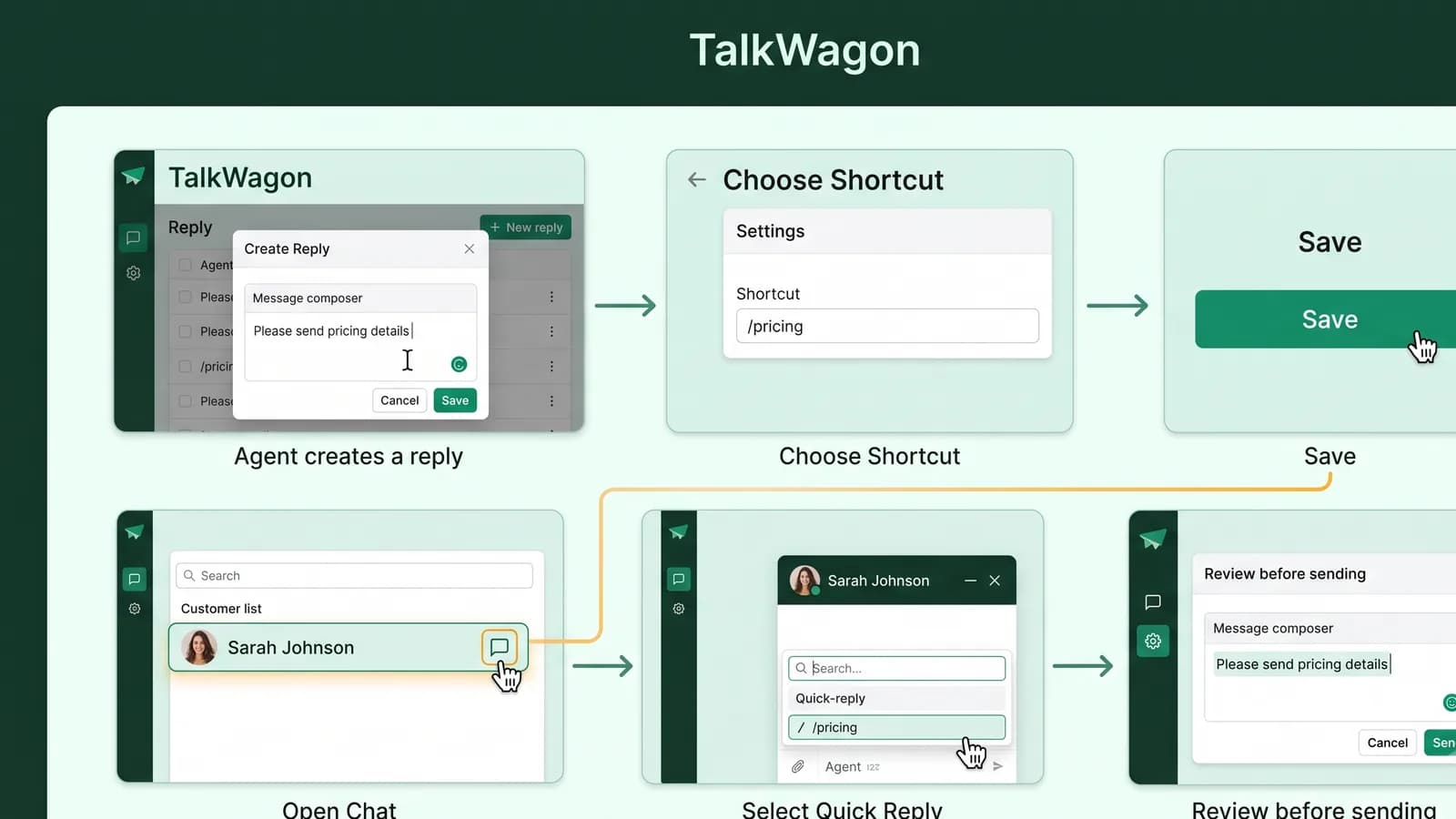
The exact labels can vary by device and app version, but the workflow is simple: create a saved message, give it a shortcut, save it, then choose it from a chat when it fits the customer request. Do a live test before training the team to use the reply.
Open Business tools
Open the WhatsApp Business app and go to the business tools or settings area where message tools are managed.
Choose Quick replies
Open Quick replies. WhatsApp labels can vary slightly by device or app version, so use the current option shown in your app.
Create the reply
Write the message that should be reused. Keep it short enough for an agent to scan and adjust before sending.
Add a shortcut
Choose a memorable shortcut such as /pricing, /hours, /delivery, /booking, or /handoff.
Save and test
Save the reply, open a test chat, type the shortcut or slash command, and confirm the reply appears correctly.
Review before sending
Treat the saved reply as a starting point. Check the customer context, personalize it, and remove anything that does not apply.
Examples
Practical WhatsApp Business quick reply examples
Use these examples as starting points, not as messages to send blindly. Replace every placeholder, check the latest customer message, and remove anything that does not apply.
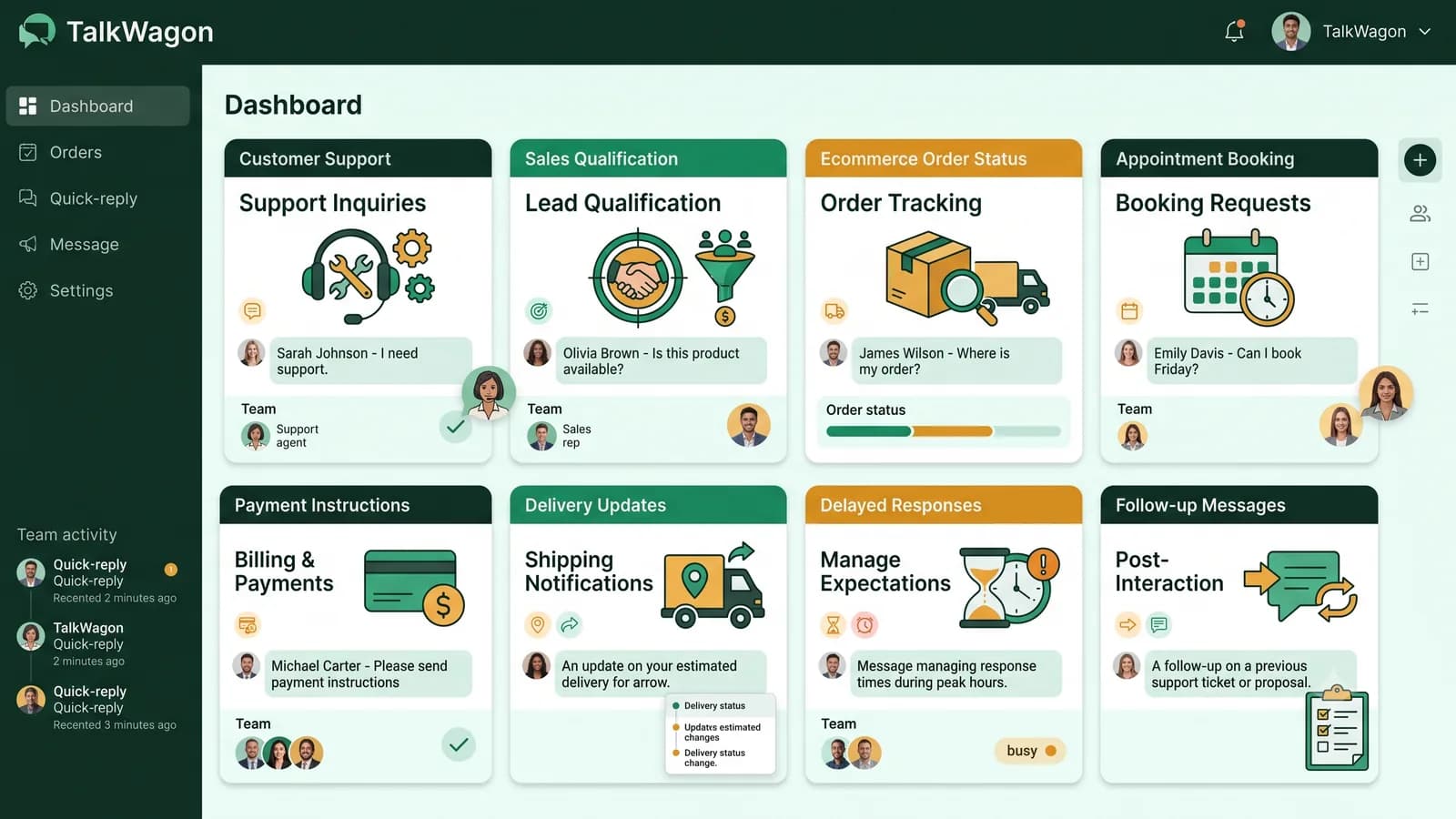
General enquiries
/helloHi [First name], thanks for contacting [Company name]. How can we help you today?
Use this when the customer has not explained the request yet.
Business hours
/hoursOur current business hours are [Business hours]. If you message outside these hours, our team will reply when we are back online.
Keep hours updated whenever staffing or holidays change.
Pricing enquiries
/pricingThanks for asking. Please tell us which [Product name] or service you are interested in, and we will share the most relevant pricing details.
Ask for the missing detail before sending a long price list.
Product availability
/stockPlease send the [Product name], size, color, or model you need. We will check availability and confirm the next step.
Useful for ecommerce, local retail, and product-led sales teams.
Order confirmation
/orderThanks. Please share your [Order number] so we can check the order status and help you accurately.
Do not ask for passwords, OTPs, or payment-card details.
Delivery information
/deliveryDelivery timing depends on your location and order status. Please send your [Order number] and delivery city so we can check the latest update.
This avoids guessing and sets up a useful follow-up.
Appointments and bookings
/bookingTo help with your booking, please send your preferred date, time, service, and location. We will confirm availability before the appointment is booked.
Make it clear that the booking is not confirmed until the team replies.
Customer support
/supportI can help with that. Please share a short description of the issue and any relevant [Order number], account email, or screenshot.
Ask only for information the team genuinely needs.
Sales qualification
/salesHappy to guide you. Please share what you are trying to achieve, your expected timeline, and the best contact person for this request.
Good for service providers, SaaS teams, agencies, and B2B sellers.
Payment instructions
/paymentWe can share payment instructions here, but please do not send card details, passwords, OTPs, or private banking codes in chat.
Saved payment replies should include safety boundaries.
Delayed responses
/delayThanks for your patience. We are checking this and will reply with an update as soon as we have confirmed information.
Do not promise an exact time unless your team can meet it.
Human handoff
/handoffI am going to connect this conversation with [Agent name] so the right team member can review the details and help you further.
Use this when a saved answer is not enough.
Follow-up messages
/followupHi [First name], I am following up on your previous request. Do you still need help with [Topic]?
Keep follow-ups polite and relevant to the actual conversation.
Library
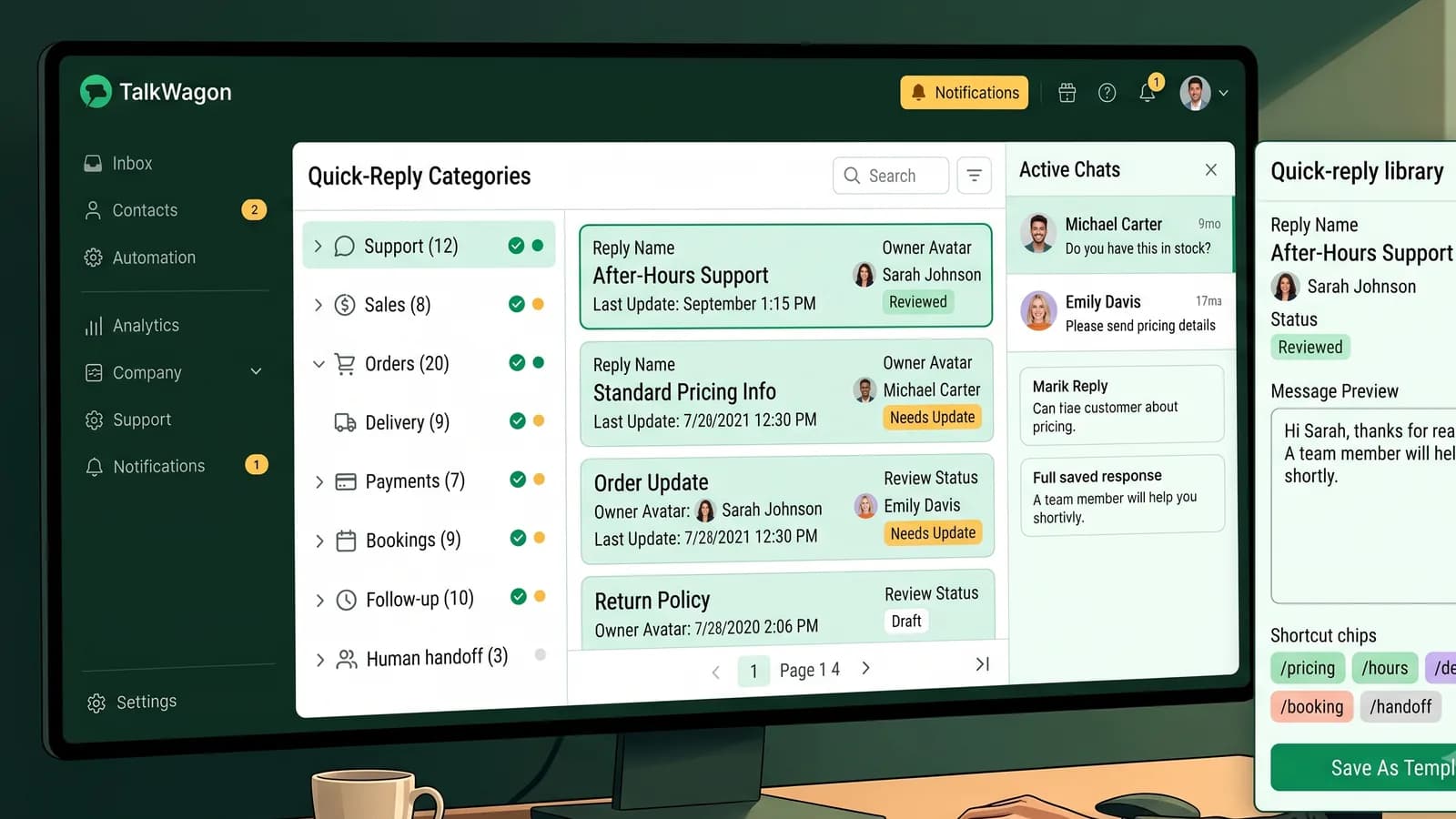
How to organize a quick-reply library
The problem with saved replies is not usually the first week. The problem appears later, when old prices, old hours, and duplicate replies stay in circulation. A library needs structure so agents can find the right reply and trust that it is still accurate.
Group replies by purpose, such as support, sales, orders, delivery, bookings, payments, and handoff.
Use short shortcuts that agents can remember, such as /hours or /delivery.
Assign an owner for each reply so someone is responsible for accuracy.
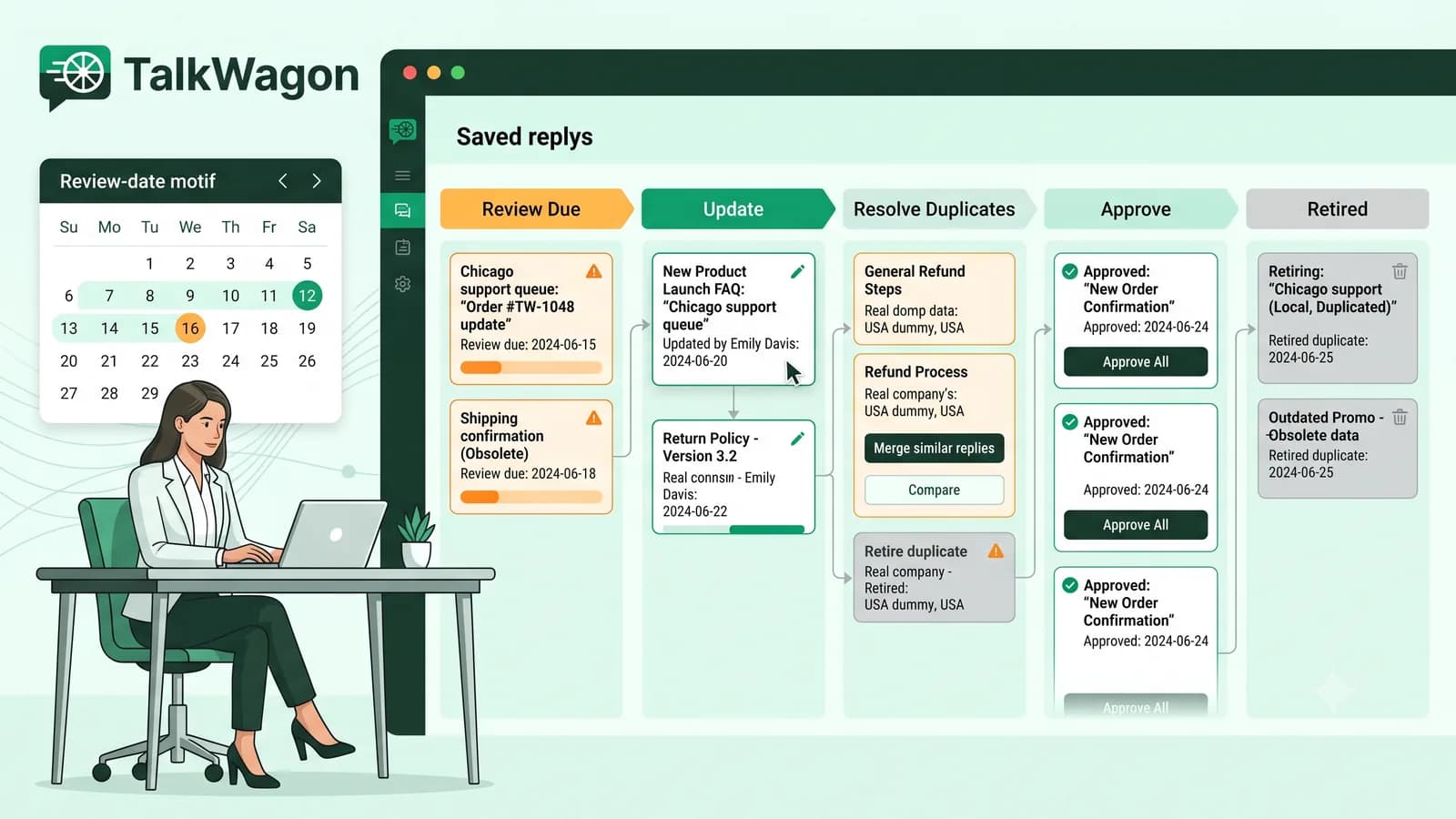
Add a review date for replies that mention prices, hours, policies, availability, or compliance-sensitive wording.
Retire duplicates instead of letting agents choose between several nearly identical answers.
Writing
How to write better quick replies
The best saved reply sounds like a helpful agent wrote it, not like a system pasted a script into the chat. It should be accurate, brief, safe, and easy to adapt.
- Start with the customer's situation, not with your internal process.
- Keep replies short enough to personalize quickly.
- Use placeholders like [First name], [Order number], and [Support link] only when the agent will replace them.
- Avoid asking for passwords, OTPs, full payment-card details, or unnecessary sensitive information.
- Include one clear next step so the customer knows what to do after reading the reply.
- Use friendly language, but avoid sounding like a script when the customer is upset or confused.
Mistakes
Common quick-reply mistakes to avoid
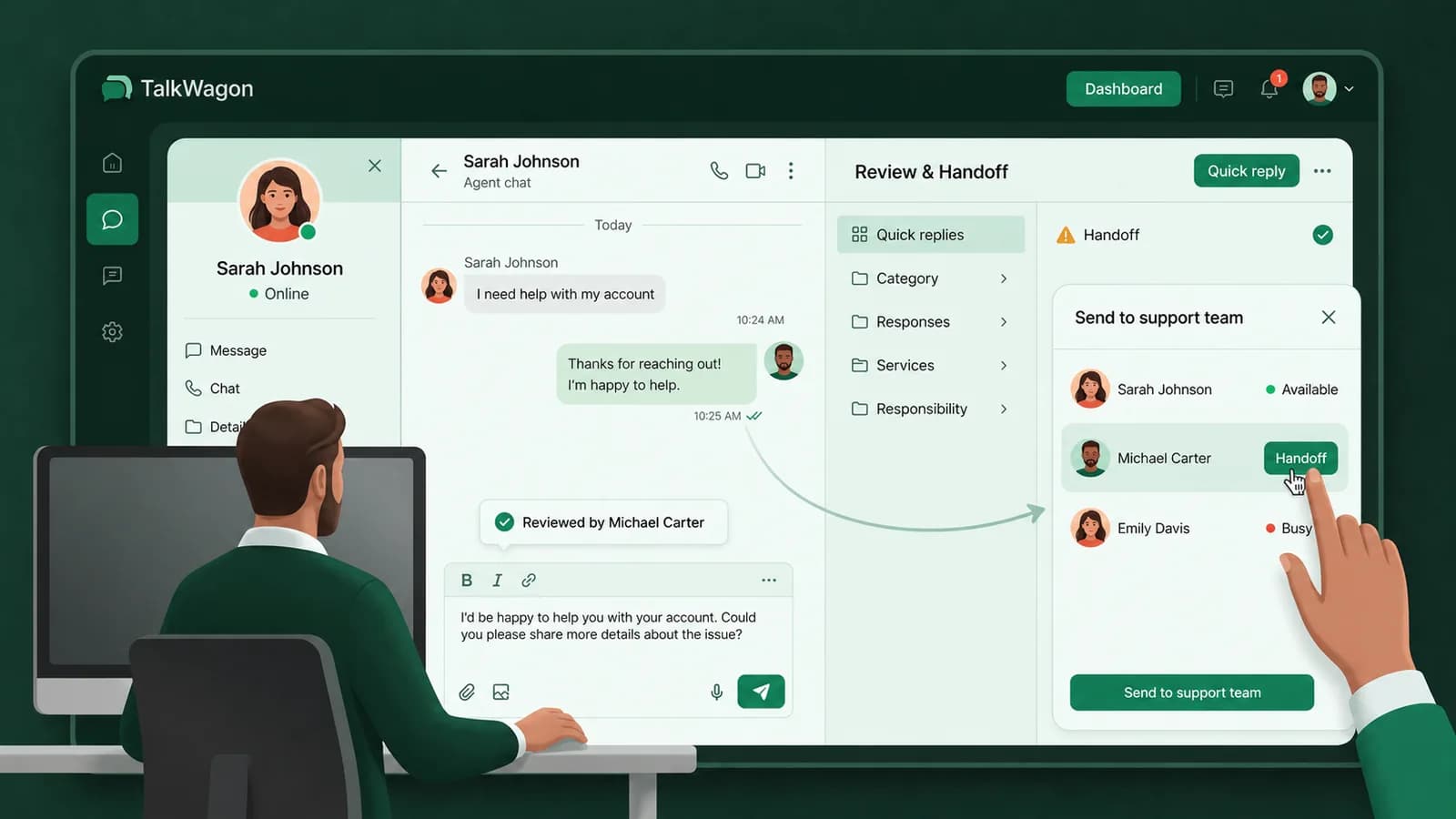
Quick replies are meant to reduce repetitive typing. They should not reduce care. A saved reply that ignores context can frustrate a customer faster than a slower but accurate human answer.
Checklist
Practical implementation checklist
Start small. A tight set of accurate quick replies is easier to train, review, and improve than a giant library nobody trusts.
- List the top repeated questions your team answers every week.
- Create one reply per clear purpose instead of one giant all-purpose answer.
- Choose memorable shortcuts and avoid duplicates.
- Add placeholders only where they are useful.
- Review each reply for privacy, accuracy, and tone.
- Test replies in real chat context before training the team.
- Schedule monthly or quarterly reviews for replies that can become outdated.
Team workflows
How TalkWagon supports consistent team communication
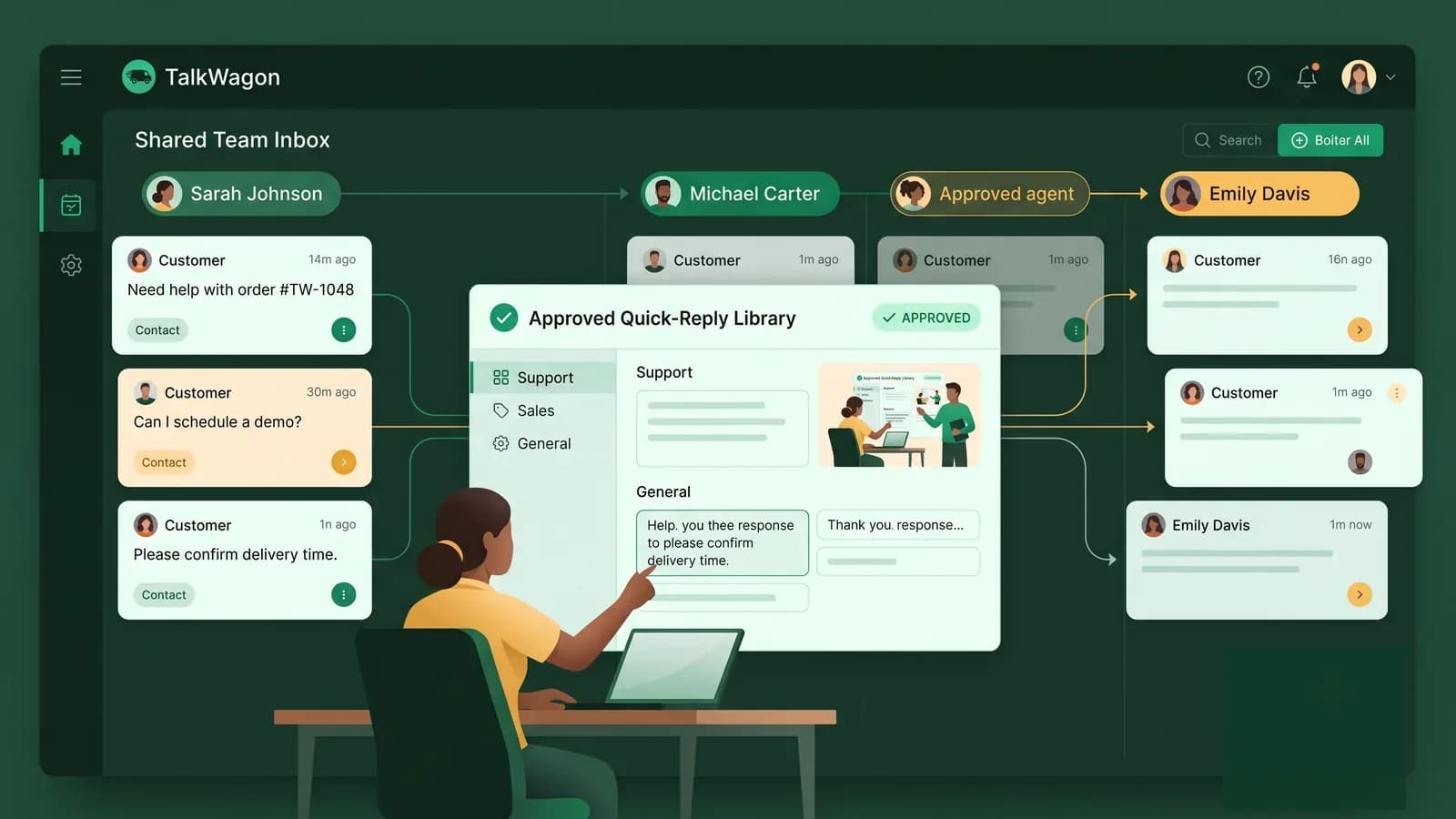
TalkWagon is built for teams that manage customer conversations across a shared WhatsApp CRM workspace. A team can keep customer context in one place, organize contacts and pipeline follow-ups, use automation and visual flows for structured routing, and hand conversations to the right person when a saved reply is not enough.
That does not remove the need for a good reply library. It makes the library more useful because the team can combine reusable wording with contact context, assignments, tags, and human ownership.
FAQs
Helpful FAQs about WhatsApp Business quick replies
What are WhatsApp Business quick replies?
WhatsApp Business quick replies are saved responses that help a business reuse frequently sent messages. An agent can select a saved reply during a chat and then review or personalize it before sending.
How do I set quick replies in WhatsApp Business?
Open the WhatsApp Business app, go to Business tools or the current message tools area, choose Quick replies, create a reply, add a shortcut, save it, and test it in a chat. Exact labels can vary by device and app version.
Are quick replies the same as automated replies?
No. Quick replies are reusable saved responses selected by a person. Greeting messages, away messages, workflows, and platform templates follow different rules and can be automatic or approval-based.
Can quick replies include customer-specific details?
Yes, but they should use placeholders such as [First name] or [Order number] so the agent knows what to personalize before sending.
What should I avoid in quick replies?
Avoid outdated prices, unrealistic response promises, very long scripts, unclear next steps, and requests for passwords, OTPs, or payment-card information.
How many quick replies should a business create?
Start with the repeated questions your team answers most often. A small, accurate library is better than a large library full of duplicates and outdated replies.
Conclusion
Build quick replies that agents actually trust
WhatsApp Business quick replies are simple, but a professional quick-reply system needs more than a few shortcuts. Write replies for real customer situations, organize them by purpose, review them regularly, and train agents to personalize before sending. That is how saved replies become a useful service habit instead of another source of confusing canned messages.
Turn repeated questions into consistent team replies
TalkWagon helps growing teams manage WhatsApp conversations, contacts, follow-ups, automations, visual flows, and human handoff in one CRM workspace.
Start your free trial